
Install Relay
Prebuilt packages are available for 64-bit Linux and Windows on x86-64. Open the latest release and choose the file for your system under Assets. Latest release ↗
Linux
Download Relay-<version>-linux-amd64.tar.xz. With tar, xz, and make installed, run the following in your download directory. Use the actual filename if your version differs.
tar -xJf Relay-1.4.1-linux-amd64.tar.xz
cd relay
make user-install
Open Relay from your application launcher. To uninstall, run make user-uninstall from the same extracted directory.
Windows
Download Relay-<version>-windows-amd64.exe, move it to a folder where you want to keep it, and double-click it to open Relay.
The executable is unsigned, so Windows may show a publisher warning. Verify that you downloaded it from this repository’s release before opening it.
Run from source
Clone the repository, install the Go version specified in go.mod, and set up the Fyne desktop prerequisites for your platform. Fyne prerequisites ↗
go run ./cmd/relayRun the command from the repository root.
Send your first request
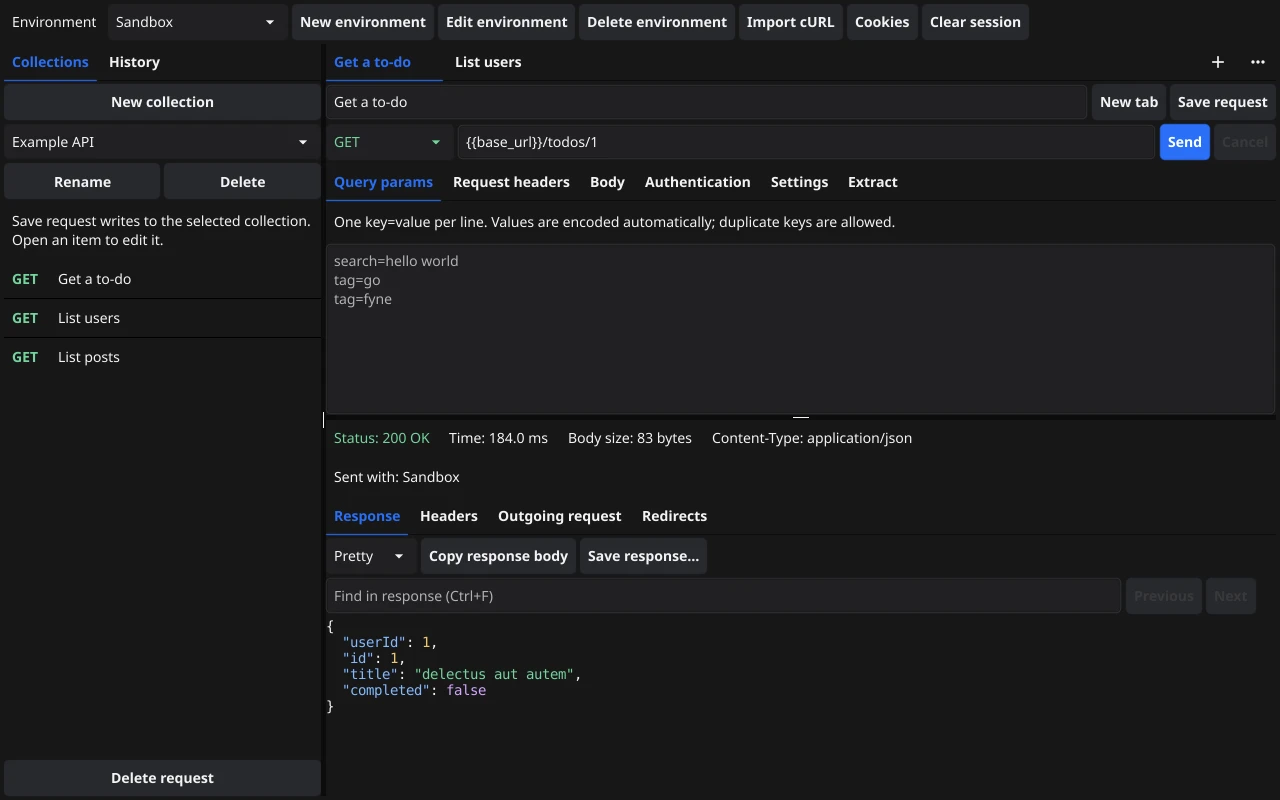
Try a public example API to see how Relay builds a request and displays the result.
- Open Relay and select GET beside the URL field.
- Enter the following URL.
https://jsonplaceholder.typicode.com/todos/1- Click Send or press Enter in the URL field.
- Look for 200 OK and the to-do object in Response → Pretty.
Testing a local server? Enter a URL such as 127.0.0.1:8080/users. Relay supplies http:// for a URL without a scheme. Include https:// for HTTPS.
Build requests
Choose an HTTP method and a URL, then configure the request using the tabs below the URL bar.
- Query params
- Enter one
name=valueper line. Relay encodes values when it sends the request. You can repeat names and leave values empty. - Request headers
- Add rows for headers such as
Accept: application/json. Disable a row to leave it out of the next request. - Authentication
- Choose Basic for a username and password, Bearer for a token, or None if the request needs no built-in authentication.
- Settings
- Set a timeout such as
20sor500ms. The default is 30 seconds. Use0to disable it. Enable Stop at first redirect to inspect the first redirect response.
Send JSON or form data
Open Body, choose a format, and enter your payload. For a JSON request, an empty editor sends an empty body.
- JSON accepts a JSON value such as
{"name":"Ada"}. - application/x-www-form-urlencoded sends ordinary form fields. Click Add field for each name and value.
- multipart/form-data accepts text and files. Add a field, set its type to file, and click Choose file… or enter the path. Relay generates the boundary and reads each file when you send the request.
Click Cancel beside Send to stop a running request. Each tab has its own request and cancel control.
Inspect responses
The response panel shows the HTTP status, duration, retained body size, and Content-Type.
- Response
- Choose Pretty for formatted JSON, Raw for the original text received by Relay, or Tree to explore JSON objects and arrays. Text, HTML, and XML are shown as source. Supported images get a preview.
- Headers
- View the headers returned by the server. Use Copy headers to copy them.
- Outgoing request
- Inspect the initial application request from the last send. Relay masks credentials, custom header values, and other sensitive fields.
- Redirects
- Review each redirect decision, its status, the proposed method, and the destination when available.
Use Ctrl + F (Cmd + F on macOS) to search the response. Copy response body copies the available text. Save response… writes the retained bytes, including for binaries such as PDF and ZIP.
Relay retains up to 16 MiB of body data after decompression. When a transfer is incomplete, Relay labels the partial response and offers Save partial response…. Large responses can also have a limited text or JSON preview.
Collections and history
- Click New collection in the sidebar and give it a name.
- Name your request, select the collection, and click Save request.
- Select the request in the collection to reopen it. Click Save request again after making changes.
Use New tab to work on independent requests. History lists requests you’ve sent. Reopen an entry to inspect or resend it, or save it as a collection request.
Collections, drafts, environments, and regular history are stored locally and survive restarts. To back up the workspace, keep workspace.json and the sibling bodies directory together. On Linux, both are inside ${XDG_CONFIG_HOME:-~/.config}/relay.
Environments and variables
Use environments to switch targets and credentials while keeping the same request template.
- Click New environment, name it Local, and add a variable.
base_url=http://localhost:8080- Create a second environment with its own
base_url. - Set the request URL to
{{base_url}}/users. Select the target environment in the top bar and click Send.
Use {{name}} in URLs, query parameters, headers, bodies, authentication fields, and timeout settings. Relay substitutes literal values at send time. Inside JSON strings, variable values must already be escaped where needed.
Reuse a value from a response
Open Extract, click Add rule, and enter a JSON path such as $.access_token and a variable name such as token. Select an environment and send the request.
After a complete successful JSON response, a matching string, number, or boolean becomes available as {{token}} in that environment. Nested fields and zero-based indexes such as $.items[0].id are supported. Check Last run for rule results. Use Clear session to clear overrides and restore the manual values.
Storage. Manual variables and credentials are stored in the local, unencrypted workspace. Extracted values are kept in memory and cleared when Relay exits. Responses tied to extraction rules or session-derived values are also session-only.
Import cURL
Click Import cURL in the top bar, paste a single command, and review the preview. Click Import to open it in an editable tab. Relay parses the command as text. You can review the request before sending it.
curl 'https://jsonplaceholder.typicode.com/todos/1' \
  --header 'Accept: application/json'
Import supports common HTTP methods, headers, authentication, inline bodies, form fields, and timeouts. Use POSIX-style quoting. The preview flags unsupported input or settings that Relay handles differently.
Troubleshooting
A request fails before a response arrives
Check the URL, protocol, and port. For a URL with {{variables}}, confirm the correct environment is selected and defines each variable. Check Settings for a short timeout.
A Linux launcher entry has no icon
Use the Linux package from version 1.4.1 or later and rerun make user-install from the extracted directory. The installer puts the icon in the hicolor theme directory.
A history entry has no response after a restart
Relay keeps some responses in memory, including exchanges that use session cookies, enabled extraction rules, or values extracted this session. Reopen and resend the request to fetch a new response.